Cron
What is a cron?
A cron is a service that allows a user to automatically execute a script at a specific time.
InvoiceFlash uses a cron to run its scheduled tasks (for example, the automatic import of supplier invoices from email). The cron task must run every hour. In InvoiceFlash, the scheduled tasks (cron) screen shows the tasks, when each one last ran and when the next one is due.
Setup in cPanel
Set up cron jobs through cPanel using this procedure:
- Log on to your cPanel interface.
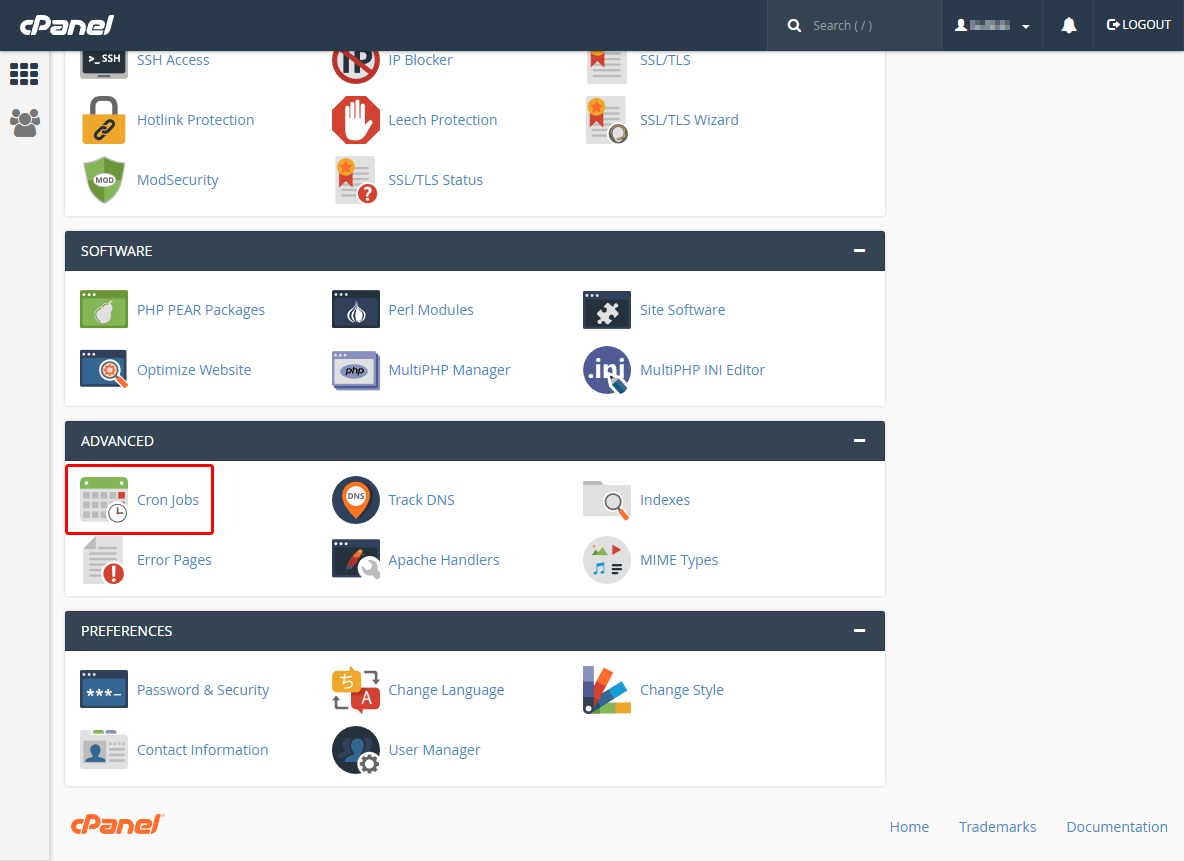
- Go to the "Advanced" section.
- Click on "Cron Jobs".
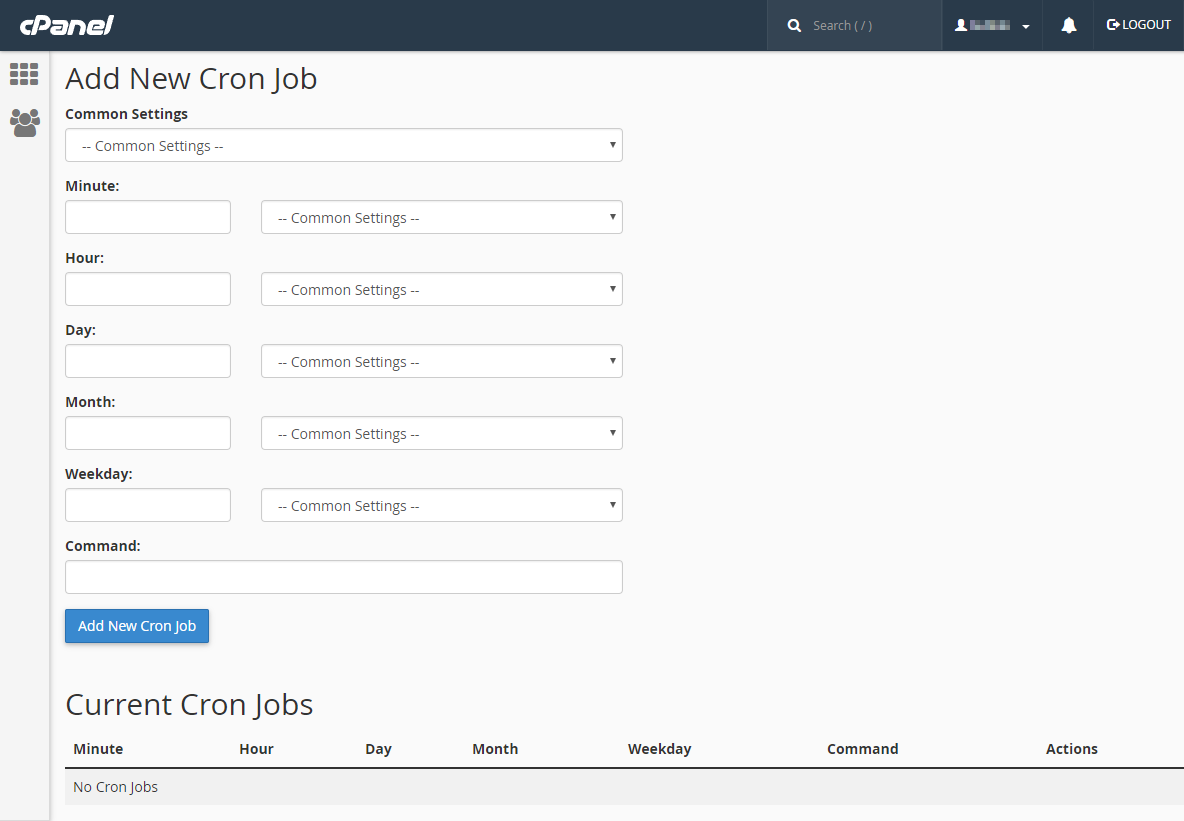
- Select the specific time from the lists provided.
- Enter the command to run in the "Command" field.
Choose the "Once per hour" frequency and enter the command with the address of your installation:
wget "https://your-domain.com/system/vendor/cron/cron_actions.php" --read-timeout=5400
This is the same command shown on InvoiceFlash's scheduled tasks screen. If you are not sure about the path or whether your server has wget, ask your hosting provider.
Setup in Plesk Panel
If you are going to create a subscription-level task, then you can create a cron/Windows scheduler task in:
- Log on to your Plesk Panel interface.
- Go to the "Subscriptions" section and click "Your Subscription".
- Select "Websites & domains".
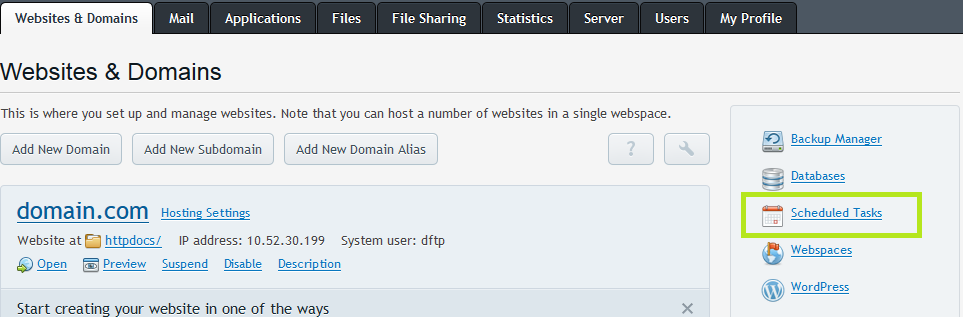
- Click on "Show advanced operations".
- Select "Scheduled Tasks".
- There will be only one name, the FTP user of your subscription.
Note
Pay attention to the interface changes for Plesk 11.5 and Plesk 12+: there is no need to open "Show advanced operations".
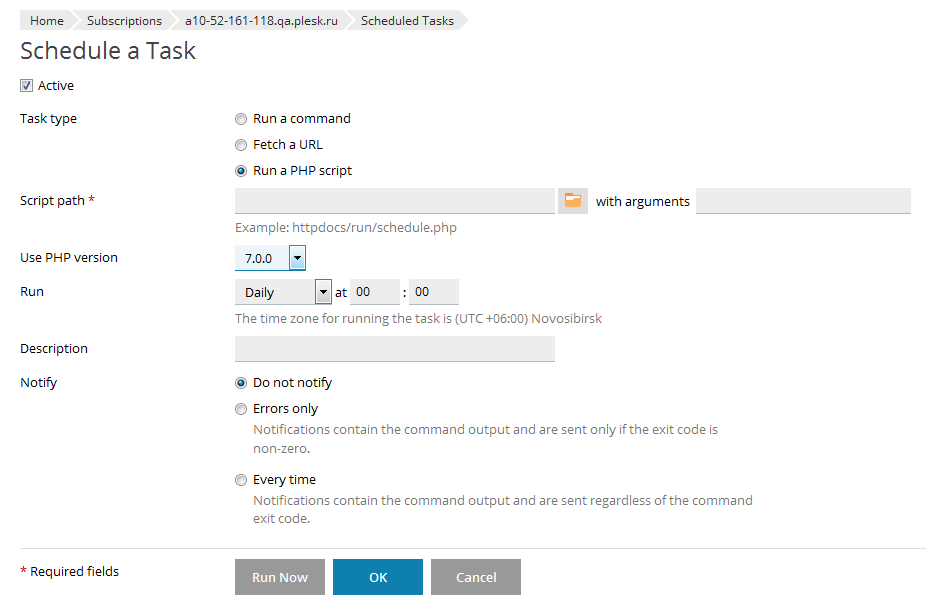
The latest Plesk 12.5 provides many options to cover most task cases:
Other Plesk versions support only the "Run a command" option (Plesk 12.0):
If you just need the short answer, in "Server" → "Scheduled Tasks" you can choose:
- The FTP user of your subscription, for example mysite.com.
- You can choose root, but it is not recommended for security reasons.
For Plesk versions below 12.5, there are two ways to schedule the execution of a PHP script on Windows:
-
Direct call of the PHP binary with your script as an argument.
- Path to the executable file:
C:\Program Files (x86)\Parallels\Parallels Panel\Additional\PleskPHP55\php.exe - Arguments: the path to your script, like
C:\inetpub\vhosts\domain.tld\httpdocs\script.php
Note
Pay attention to the interpreter path:
...Additional\PleskPHP55\php.exeis the path for PHP 5.5. You can changePleskPHP55toPleskPHP5,PleskPHP53orPleskPHP54to use another PHP version. - Path to the executable file:
-
Call the script via a request to your site.
- Path to the executable file:
C:\Windows\System32\WindowsPowerShell\v1.0\powershell.exe - Arguments:
-c "(new-object system.net.webclient).downloadstring('http://domain.test/script.aspx')"
- Path to the executable file: